Showing posts with label Sekedar Cerita. Show all posts

Remove System Defragmenter

Author: Nikki Smith Osborne

What is System Defragmenter?
System Defragmenter is a noxious program that imitates a computer optimization tool that scans computer system and detects disc problems. This rogue application is installed to random computers through malware infections and uses typical methods in order to trick computer users and rip them off by selling a fake program.
Right when System Defragmenter is downloaded and installed to computer, it is enabled to be run each time Windows is started. As a consequence, you will experience tons of unwanted actions on your system, such as displaying fake alerts that warn about hardware failure, etc. The warnings read:
"Critical Error
Hard Drive not found. Missing hard drive.

"Critical Error
RAM memory usage is critically high. RAM memory failure.

"Critical Error
Windows can't find hard disk space. Hard drive error

"Critical Error!
Damaged hard drive clusters detected. Private data is at risk.

"Critical Error!
Windows was unable to save all the data for the file \System32\496A8300. The data has been lost. This error may be caused by a failure of your computer hardware.

"Critical Error
A critical error has occurred while indexing data stored on hard drive. System restart required.

"System Restore
The system has been restored after a critical error. Data integrity and hard drive integrity verification required.
System Defragmenter also pretends to scan infected computer system and reports about some disc errors which in fact are absolutely fake. However, the program will attempt to convince you to find a bunch of problems on your system. Here are a few examples of the messages you can receive after System Defragmenter finishes its scan:
Read time of hard drive clusters less than 500 ms
32% of HDD space is unreadable
Hard drive does not respond to system commands
Bad sectors on hard drive or damaged file allocation table
Drive C initializing error
and many more...
Do not take these notifications for granted under any circumstances as SystemDefragmenter doesn't have any properties of a legitimate optimization tool. You are strongly adviced to remove System Defragmenter as soon as possible instead of trusting any information it provides.
System Defragmenter removal Screen Shots:



Manual System Defragmenter removal

Important Note: Although it is possible to manually remove System Defragmenter, such activity can permanently damage your system if any mistakes are made in the process, as advanced spyware parasites are able to automatically repair themselves if not completely removed. Thus, manual spyware removal is recommended for experienced users only, such as IT specialists or highly qualified system administrators. For other users, we recommend using Reimage Repair or other malware and spyware removal Tips and Tricks found on this blog www.reimagerepair.net Article Source

Remove AntySpyware Soft- How To Remove Antispyware soft Completly

Author: registryquick

Remove Antispyware Soft -How To Remove Antispyware Soft Completely


How to Remove Antispyware Soft Completely
1) Firstly you need to go to Start, and then to your Control Panel.
2) Once there, find, select and click the Add/ remove Programs button.
3) Once you've did that you'll now see a huge list with all kind of programs that are installed on your computer. Scroll down the list until you've stumbled on Antispyware Soft Messenger and select it.
4) Once selected you only have to hit the remove button and the removal process begins.
What is Antispyware Soft?

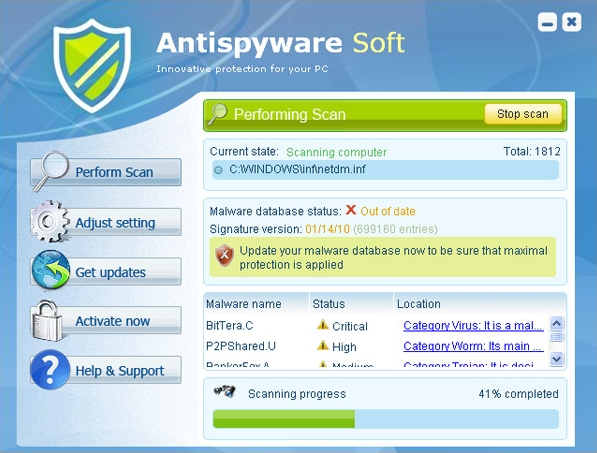
Antispyware Soft is another malicious representative of the family of rogues which includes trickily designed cyber threats such as Vista Security Tool 2010 or Total Vista Security. Being no particularly different from its rogue predecessors, Antispyware Soft involves ave.exe executable and with its help begins malicious activity on the infected PC as soon as computer boots up.
Why you get Antispyware Soft?

Many users do not know how their computers are invaded by Antispyware Soft until their PCs are in bad performance. Actually, in many cases, it is the users themselves who bring malicious into their PC, not anyone else! Why do I state this point? You know that many people know little about how to maintain computer security and the possibility of getting infected while surfing the net. They just browse any website they like or download everything they want online but never think about the safety! If you also do like this, you need to take the following actions.

Remove Antispyware Soft completely!
Generally speaking, there are two methods to prevent the attacks of Antispyware Soft. One is your self-protection awareness. Sometimes, if we are more careful, patient and prudent, we can simply get rid of the annoying of unwanted software. So please do not ignore suggestions from your friends or online experts. Think about it before you lead. The other is to use professional tool to remove Antispyware Soft. Admittedly, it is also the most effective and secure way available. With the help of professional program, we can be at ease with our PC security.

A highly recommended tool to remove Antispyware Soft is RegistryQuick which is available for free at http://www.fixpctrouble.info Before you try other programs, give RegistryQuick a try! You will be surprised!
You can easily get rid of Antispyware Soft by clicking http://www.fixpctrouble.info

Article Source: http://www.articlesbase.com/information-technology-articles/remove-antispyware-soft-how-to-remove-antispyware-soft-completely-2158146.html

How to Make a Bootable Antivirus Cd

How to Make a Bootable Antivirus Cd

Author: Matthew Rizos

How to Make a Bootable Antivirus Disc

This document will teach you how to make a bootable anti-malware ( bootable antivirus ) cd/dvd step-by-step.

Why Bootable Antivirus?
In a bootable environment we are running a stripped down version of windows in a ram disk (programs are loaded directly into ram), thus the hard drive on the PC is treated as attached storage (like a flash drive). In this state malware (malware consists of viruses, trojans, spyware, adware, rootkits, etc) is helpless and totally at your mercy. This is the best free way to remove any piece of malware with a 100% success rate.

Steps:
Please follow all the steps below:

1. Go to http://ubcd4win.com/downloads.htm

2. Select a mirror with a green status. (like "Mirror#3" for example

3. When you click on the mirror it will take you to another site where the download will be available.

4. Click the download link for Ultimate Boot CD and save the download to wherever you download stuff.

5. Once the installer has been downloaded double click it.

6. Choose your language

7. Click next about 3 more times and select the file path where you would like to install ultimate boot cd 4 win. Please note that you should have a drive with at least 5-10 gb of free space to allow for future plugin growth. I will choose C:UBCD4Win. The install should take a few minutes.

8. Click Yes to the MD5 Hash Check. The install will continue once the hash check succeeds.

9. Click Yes to see if a patch file exists.

10. Click the checkbox to launch ubcd4winbuilder.exe.

11. Click the "i agree" button.

12. Click "NO" to searching for windows files.

13. Obtain a windows xp operating system disc w/SP2.

14. Explore the disc and copy the entire content (all the folders and files on the windows xp cd) to any location on your computer. You should allocate at least 700 MB of free space for the windows xp disc.

15. Open UBCD4win (if it's not already open). Click Source browse button (3 dots ...) and browse to your i386 folder. My path was C:WindowsXPcd for example.

16. Next go to the media output section and choose a spot for your ISO image to be created. This ISO can be burned with almost any burning software. Once the ISO is burned it will be bootable.


17. Next, click the plugins button. Don't be too overwhelmed here, actually you should be very happy! Look at all those plugins!

18. Now it's time to update our anti-malware software packages.

19. The first one I have on my list is a-squared free anti-spyware. Click that line and then click the config button. A command prompt will automatically open and start downloading the latest updates for that program...totally awesome, isn't it!

20. So, now you need to update all the anti-malware programs in our plugin list. Click each one and then hit the config button.

21. After you're done configing/updating your plugins click the close button.

22. Next, click Build.

23. Click yes to create a directory and then click i agree.

24. At this point your ISO is created and is ready to be burned.

This concludes the How to Make a Bootable Antivirus CD tutorial.
Article Source: http://www.articlesbase.com/security-articles/how-to-make-a-bootable-antivirus-cd-380611.html


About the Author

Matthew Rizos is a PC Security Consultant in Saint Louis Mo You can read my blog at Learn How to Remove Viruses and Spyware

Making Older Desktop Pc Wireless

Okay so your looking for information on making a desktop PC wireless. You'll be happy to know that just about any desktop PC can support a wireless internet connection. Even older desktops can connect to the internet via a wireless internet connection.


First, make sure your desktop PC is in good working order. What I mean by good working order is just to make sure the desktop PC is free of unwanted spyware and other harmful files which could make a desktop computer's wireless connection slow down to a crawl. If you plan on making an older desktop PC wireless then you should really scan your computer for spyware and infections because the last thing you want is something stealing all your system resources when you don't have very much to begin with.

WHATS NEEDED TO MAKE DESKTOP PC WIRELESS

Let's start by assuming you already have an internet service (not dial-up) and are cruising the web with ease. You should have a cable modem connected to your desktop PC. If this is the case, then you're ready to begin your wireless setup. If you don't have an existing internet service and a cable modem then you'd better stop reading this because a wireless internet connection on your desktop PC can't be accomplished legally without them.


MAKING PC WIRELESS - WIRELESS ROUTER

First, before anything, you need to purchase a wireless router. If you've never owned a wireless router before then grabbing the most expensive model probably won't benefit you all that much unless you plan on receiving a wireless internet connection from inside of a multiple story building. In this case a more expensive router will offer a few features that are worth the extra money.

Remember when you go ahead and purchase a wireless router in hopes of making your desktop computer wireless you'll be happy to know that you'll be halfway done with your mission for wireless internet on your desktop. The only thing left is a wireless PC adapter.


MAKING PC WIRELESS - WIRELESS DESKTOP ADAPTERS

It's actually very easy to add a wireless desktop adapter to your comupter's arsenal of computing tools. There are two different types of wireless networking components that you can choose from. They are as follows.


1. Wireless USB adapter

2. Wireless PCI adapter


*both wireless devices are packaged with a setup CD-ROM which quickly installs everything needed to configure and use your PC's wireless internet connection.


wireless USB adapter is the easiest way to make a desktop PC wireless. The cons of using a wireless USB adapter are the signal strength which is considerably weaker than a wireless PCI card. Most people experience no problems with signal strength as long as they stay within range of the wireless router that's sending out the wireless signal.

Basically, installing a wireless USB adapter plugs into any available USB port. In reality, it only takes a matter of seconds to plug in a USB adapter and start using the internet without the wires.

The second wireless device that can make desktop computers wireless is called a wireless PCI (PCI = white slots inside a computer) card adapter. This device enables high performance wireless connectivity for your desktop PC with extended range.

Installation is not as hard as you might have thought. Simply remove the side panel from your desktop PC and insert the wireless PCI card into any one of the white slots inside. There is only one way the card can be installed. Reading the directions that are included when you purchase your wireless networking device is by far the best thing you can do to ensure a smooth installation and launch of your wireless connection.MAKING DESKTOP PC WIRELESS

MORE WIRELESS HOW TO INFORMATION

In the future I will most likely go into further detail about each networking component. Check out this page if you have any further questions about  making a desktop pc wireless.

How The Hd 3D TV Work

One of the emerging technologies on the market for home viewing is 3D TV. Most consumers are unaware of the inherent technology behind 3D television, leaving many to wonder, "how does 3d tv work?" Close to all of the television manufacturers have some form of 3D TV technology on the market, in various screen sizes. The most common 3D technologies for delivering the stereoscopic images to viewers are:
  • Anaglyphic 3D
  • Polarization 3D
  • Alternate frame sequencing
  • Autostereoscopic display

Anaglyphic 3D viewing is accomplished by the viewer wearing passive red and cyan lens glasses to see the images in three dimensions. Polarization 3D viewing transmits the images to viewers who are able to see in three dimensions by wearing passive polarized lens glasses. Alternate frame sequencing requires the wearing of glasses with lenses that include active shutters that allow the viewer to see traditionally two dimensional images in three dimensions. The shutters open and close depending on which eye the image needs to be seen in to make it 3D.

Autostereoscopic displays, or auto 3D, relies on transmitting images to the viewer in 3D without the viewer needing to wear specialized glasses to see the effects. There are two individual technologies associated with auto 3D, head-tracking and multiple view transmission. Head-tracking keeps a location on where the viewer is looking to ensure each eye is seeing a different image in order to transmit a picture in three dimensions. This is different from the multiple view transmission method of delivering 3D images does not need to know where the viewer's eyes are directed in order to transmit images in three dimensions.


Multi-view capture technology, which is used to film movies and television in 3D, utilizes an array of many cameras to capture images for redistribution into a multiple view format. Televisions currently on the market that utilize 3D capability, in addition to traditional 2-D viewing, generally include an Ethernet connection, USB capable player or recorder and Wi-Fi connectivity. They work in conjunction with a set-top box and LCD shutter glasses, which allows the viewer to see images on the screen in three dimensions as opposed to the traditional two.

There really isn't any magic to how 3D TV works. As the technology continues to evolve, we can prepare to be continually surprised by the new possibilities it brings us.

Syukur ALHAMDULILAH udah Punya Blog Lagi

Pusing Mau Nulis apaaam Lgi nyak..jadi gue promosiin aja blog gue yg terbaru,.
hehehe

Blog ku yang baru ini berisi wallpaper berukuran gede,pas buat dekstop agan-agan semua,.isinya wallpaper ala photgraper gitu,..trus blog yang 1 lagi berisi review film-film terbaru..

Coba Tengok Aja http://www.tjannabi.blogspot.com/, dan http://reviewcinema.blogspot.com siapa tau bermammfaat..

 
Powered by Blogger | Printable Coupons